

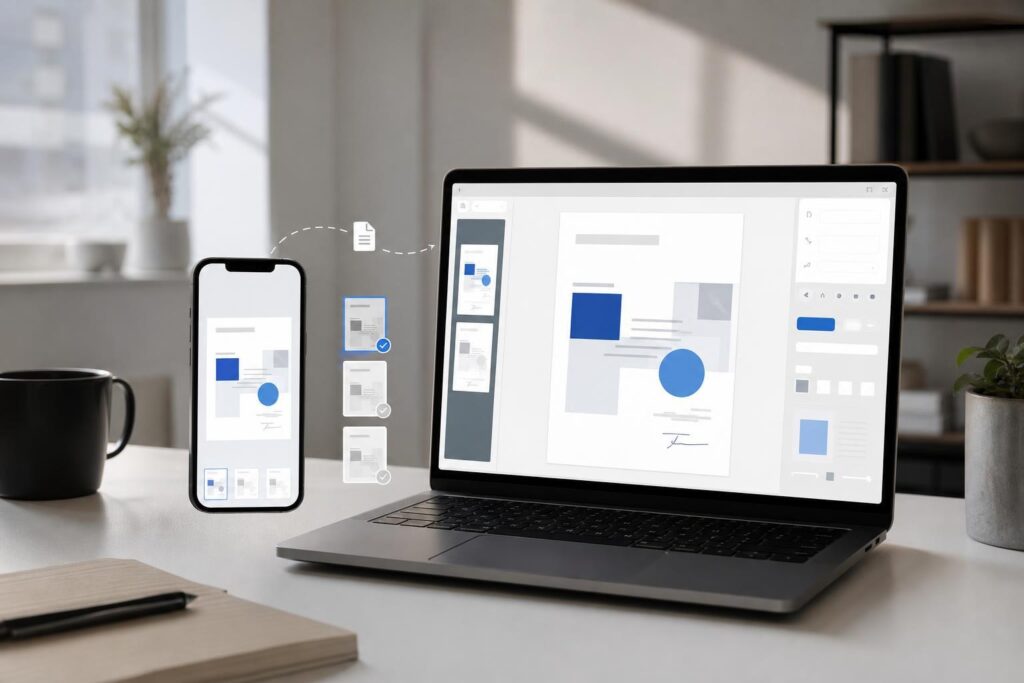
A customer sends a form from their phone. A team member downloads it to a laptop, makes a change, emails it back and then discovers that someone else already approved an older copy. The problem is not necessarily the PDF itself. It is the lack of a clear workflow around it.
This happens frequently in small teams because documents move between devices, inboxes, messaging apps and local folders. Phones are convenient for receiving, reviewing and forwarding files. Laptops are usually better for focused editing, quality checks and final organization. Without agreed handoff rules, that flexibility quickly produces duplicate files and uncertain status.
A clean cross-device PDF workflow defines where a document enters, who is responsible for each step, which version is current and where the finished file belongs. The right PDF editor can reduce friction within that process, but the tool works best when the surrounding decisions are equally clear.
Why phone-to-laptop document work becomes messy
Most small businesses do not set out to create a complicated document system. It develops one shortcut at a time. A field employee sends a file through a group chat. An office manager saves a copy under a new name. A founder makes a quick correction but forgets to remove the earlier attachment from an email draft.
Several sources of friction tend to appear together:
- Unclear ownership: Multiple people assume someone else is reviewing or updating the document.
- Version ambiguity: File names such as “final,” “final-new” and “final-2” do not communicate which copy is approved.
- Device switching: A task started on a phone may need to be completed on a laptop, but the handoff is informal.
- Scattered context: The PDF is in one place while instructions, corrections and approval notes are somewhere else.
- Premature distribution: A document is sent to a customer before someone checks the final content and presentation.
These issues affect more than administrative neatness. A confusing proposal, outdated service sheet or incorrect intake document can slow down the customer’s next step. Clean document operations are therefore part of the customer experience.
Give each device a clear role
A cross-device workflow does not require every task to be equally convenient on every screen. It requires the team to know which device is best suited to each stage.
Use phones for intake, access and quick review
Phones are useful when speed and location matter. A real estate professional may receive a property document while traveling. A local-service technician may photograph paperwork from a job site. A consultant may need to confirm that a client sent the requested file.
Those are valuable actions, but they do not mean every document should be finalized on a small screen. Detailed editing, page-by-page checking and precise visual review may be easier on a laptop. Treating a phone as an intake and review device can prevent rushed changes from becoming official versions.
Use laptops for controlled editing and final QA
Laptops generally provide more room to compare instructions with the document, inspect layout and keep track of the working file. This is often the appropriate stage for using a focused PDF editing tool.
The point is not to add another unnecessary application. It is to avoid rebuilding an entire source document or passing a small correction through several people when the work can be handled directly in a PDF workflow. Teams evaluating this approach can review the current Elite PDF Editor experience and confirm that it supports the actions and devices relevant to their process.
A five-stage cross-device PDF workflow
The following structure works as a starting point for proposals, information packets, internal forms, client documents and other recurring business PDFs. Adapt the exact responsibilities to your team, but keep the status changes consistent.
- Capture the file once. Decide where incoming PDFs should be placed after they arrive by email, upload or mobile handoff. Avoid allowing the only working copy to remain inside a personal inbox or chat thread.
- Assign an owner and status. One person should be responsible for moving the document forward. Use a small set of statuses such as received, editing, review, approved and sent.
- Edit from a designated working copy. Do not create a new attachment for every minor revision. Keep one clearly identified working version and reserve “approved” or “final” for a file that has actually passed review.
- Run a final business check. Confirm names, dates, contact information, pricing references, page order and any customer instructions. The review should cover meaning and accuracy, not only appearance.
- Distribute and archive deliberately. Send the approved version from the agreed channel, then store it where the team expects completed documents to live. Remove or clearly separate obsolete drafts.
A simple naming pattern can make the process easier to follow. For example, use the document type, customer or project identifier, date and status. The exact format matters less than applying it consistently.
Where a PDF editor fits—and where it does not
A PDF editor is most useful when the document already exists in PDF form and the team needs a direct, controlled way to work with it. It can help eliminate the detour of locating a source application, recreating a file or relying on a colleague for every routine document adjustment.
However, a PDF editor should not automatically become the starting point for every piece of business content. If the document needs substantial rewriting, repeated collaboration or a complete structural change, it may be better to revise the source content first. Elite UI’s AI Document Editor is a complementary option for business writing and document drafting before content reaches its final PDF stage.
The distinction is practical: create and reshape content in a document-focused environment; use a PDF-focused workflow when the file is already in its distribution format and needs to be prepared, checked or handled as a PDF.
Is Elite PDF Editor a fit for your workflow?
Elite PDF Editor is relevant for founders, marketers, creators, local-service operators and small teams that regularly receive or distribute PDFs and want a more focused path through everyday document work.
It may be a good fit when:
- Your team loses time moving between a PDF, its source file and multiple message threads.
- Routine document changes are creating too many duplicate versions.
- People receive files on phones but need a cleaner laptop-based completion step.
- You want one obvious place to begin PDF work instead of an improvised chain of tools.
- You can define a straightforward owner, review and approval process around the editor.
It may not be the complete answer if you need a highly specialized internal workflow, custom permissions, industry-specific processing or a document tool built around proprietary business logic. Those requirements should be mapped before selecting a general-purpose editor. For a tailored product experience, Elite UI also offers custom website and product design.
Common questions before changing your PDF process
Can the whole workflow happen on a phone?
That depends on the type and complexity of the document, as well as the current product experience. Mobile access is valuable, but a phone-only rule can create new friction when careful inspection or detailed changes are required. Test your most common document on the devices your team actually uses rather than assuming every step should be mobile-first.
Why not always edit the original source file?
Editing the source is often the right choice for major revisions or frequently updated documents. It becomes less efficient when the source is unavailable, owned by another person or unnecessary for a limited PDF task. A clean workflow should define when to return to the source and when direct PDF work is the more practical route.
What about sensitive business or customer documents?
Do not assume that every online document tool satisfies your organization’s privacy, access or retention requirements. Review the current product information and your own policies before uploading sensitive material. Regulated or confidential workflows may require additional internal controls or a custom solution.
Test the workflow with one recurring document
Do not overhaul every document process at once. Choose one recurring PDF, such as a service information sheet, client packet or project summary, and follow it from receipt to final distribution.
Note where people switch devices, create copies, wait for approval or lose context. Then establish one owner, one working version and one completion rule. This small test will show whether the main issue is the editing tool, the handoff process or both.
If your team is ready to replace scattered PDF handling with a more focused starting point, review the live product and try the workflow with a real, non-sensitive document. Open PDF Editor.
Ready to Turn This Into a Faster Workflow?
Try Elite PDF Editor inside Elite UI and move from research into a real business-ready result.
Product features, pricing, plan details and availability may change. Check the current Elite UI product page for the latest information before purchasing or publishing.