

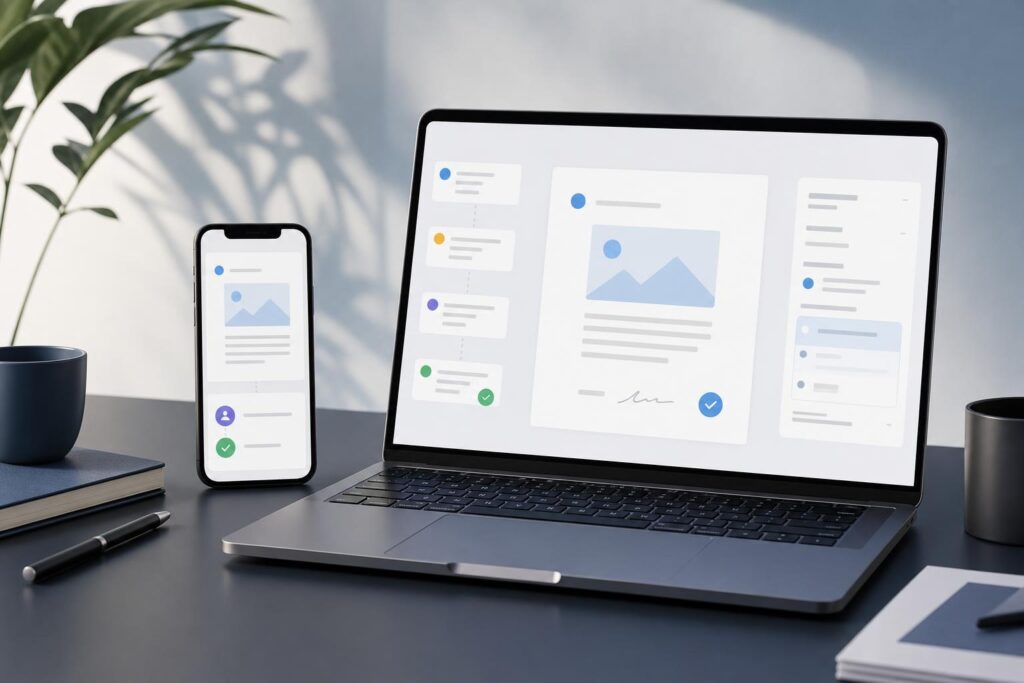
A customer opens your proposal on a phone. A team member spots an outdated service description. Someone else has the corrected file on a laptop, but the attachment in the email thread has already been forwarded twice.
The problem is not simply that your team uses different devices. It is that every device, app and handoff creates another opportunity for the wrong PDF to become the “final” version.
A clean PDF workflow gives each person a clear answer to four questions: Which file should I use? What am I expected to do with it? Where does the updated version go? Who confirms that it is ready to send?
For founders, service businesses, agencies and small teams, answering those questions can prevent avoidable delays without requiring a complicated document-management system.
Why cross-device PDF work becomes messy so quickly
Phones are useful for checking a document between appointments, forwarding a quote or responding to an urgent client request. Laptops are usually better suited to focused editing, detailed comparison and final quality control.
Problems appear when those two modes of work are treated as interchangeable. A quick phone review may identify a change but leave no clear record of who will make it. A laptop user may update a local copy while another person continues sharing an older attachment.
The resulting friction usually shows up in a few predictable ways:
- Multiple files have names such as “final,” “final-new” and “final-2.”
- Corrections are scattered across email, text messages and chat threads.
- A reviewer sees the document but does not know whether approval or editing is expected.
- The source document changes after the PDF has already been distributed.
- A team member sends the easiest file to find rather than the latest approved file.
- Mobile viewers miss layout issues that become obvious on a larger screen.
These are workflow failures, not individual failures. Telling everyone to “be more careful” will not fix a process that has no defined file states or handoff rules.
Separate viewing, revising and approving
The first improvement is to stop treating every interaction with a PDF as the same task. Most document activity falls into one of three categories.
Viewing
The person needs to read or reference the document. No revision is expected. Examples include a technician checking a scope of work on-site or a salesperson confirming the terms of a current offer.
Revising
The document contains an error, outdated detail or presentation issue that needs to be corrected. This step requires an identified owner rather than a comment left in an unrelated conversation.
Approving
The reviewer confirms that the PDF is ready for its intended audience. Approval should happen after content and presentation checks, not merely because the file opens successfully.
When sending a document internally, state the required action directly: “Review the pricing section,” “Replace the old phone number” or “Approve this version for the client.” That short instruction removes ambiguity across devices.
Create one path from working file to approved PDF
A reliable process does not need many stages. It needs stages that everyone understands. A practical small-team sequence might look like this:
- Draft: Content is still being written or assembled.
- Review: The document is complete enough for factual and presentation checks.
- Revision: One owner applies the collected changes.
- Approval: A designated person checks the revised PDF.
- Released: The approved file is ready to send, publish or archive.
Keep the working source separate from the released PDF. If a proposal originates in a document editor, spreadsheet or design file, that source remains the place for major content changes. The PDF is the distribution format, not automatically the master record.
For focused changes to an existing PDF, a dedicated editing workflow can be more practical than rebuilding the full document. The Elite PDF Editor gives teams a direct place to explore a simpler PDF workflow. Review the live product page and test it with the kinds of files and devices your team actually uses before standardizing your process.
Use filenames that communicate status
A filename should help a person make a decision without opening three similar attachments. Include the document purpose, customer or project identifier, date and status when appropriate.
For example, a local-service proposal could follow a structure such as Project-Proposal-Client-2025-03-08-Review.pdf. After approval, the status could change to Released.
Avoid adding “final” repeatedly. If changes are made after release, create a new dated version and return it to review. This preserves the meaning of an approved file instead of turning “final” into a vague label.
Teams should also decide where the released version belongs. The exact storage system matters less than the rule: there should be one recognized location for approved PDFs, and attachments should not silently become the source of truth.
Design the workflow around what each device does well
A clean cross-device workflow does not force every task onto a phone. It assigns work according to context.
Phones are useful for quick reading, confirming that the right file was received and flagging urgent factual problems. A real estate professional might check a property document while traveling. A field-service owner might confirm a scope before arriving at a job. A creator might approve the general direction of a media kit between meetings.
Laptops are better for concentrated review. Use the larger screen to inspect page order, spacing, image quality, dense sections, repeated details and visual consistency. The person responsible for release should complete this broader check even if several colleagues have already viewed the file on phones.
This division reduces a common mistake: assuming that a quick mobile glance is equivalent to a final document audit.
Add a short release check before sending
Before a PDF leaves the business, one person should verify the details that create the most customer friction. The checklist can be brief:
- Is this the latest approved version?
- Are the customer, project and business details correct?
- Do dates, prices, totals and deadlines match the working source?
- Are all pages present and in the intended order?
- Does the document remain readable on both a phone and a laptop?
- Are outdated notes, placeholders or internal comments absent?
- Is the filename clear enough for the recipient to recognize later?
If the content still needs substantial rewriting or collaboration, a PDF tool may not be the right starting point. Build and refine the source in an appropriate workspace, such as the AI Document Editor, and produce the distribution PDF after the content is settled.
Is Elite PDF Editor a fit for your workflow?
Elite PDF Editor is most relevant when your team regularly receives or distributes PDFs and wants a more direct way to handle document updates. It may fit founders, marketers, agencies, creators and service businesses that need to prepare customer-facing files without turning every correction into a lengthy rebuild.
It is worth evaluating when your current process depends on passing files between unrelated tools, repeatedly exporting documents or waiting for one person to access a specific workstation.
However, the right decision depends on the documents you handle. Use a representative sample when testing: a short proposal, a multi-page information pack and a file with the visual elements your business commonly uses. Confirm the current product capabilities on the live page rather than assuming that every PDF workflow is supported.
Common objections and decision questions
“Can we keep using email attachments?”
Yes, but email should be a delivery channel rather than your version-control system. If attachments remain part of the process, define where the approved file lives and require senders to retrieve it from that location. Otherwise, an old email can easily reintroduce an outdated version.
“Do we need a PDF editor if we already have the source document?”
Not for every change. Major rewrites, structural revisions and collaborative drafting often belong in the source file. A PDF editor becomes more relevant when the PDF itself is the document being handled and the required work does not justify reconstructing the entire asset.
“Will the same workflow work on every phone and laptop?”
Do not assume it will. Devices, screen sizes, browsers and file complexity can affect the experience. Test the actual workflow your team plans to use, including opening, reviewing, editing where applicable, exporting and checking the released file.
“What if our document process is more specialized?”
Some businesses need a tailored document experience rather than a general self-serve workflow. If your process involves specialized steps, customer-facing logic or a purpose-built product interface, discuss a custom document-tool build with Elite UI instead of forcing a standard tool to cover every requirement.
Turn the rules into a repeatable habit
The best PDF workflow is not the one with the most software. It is the one your team can follow under normal working conditions, including when someone is away from a desk.
Choose one naming convention, one location for released files, one revision owner and one approval step. Then test the process from both a phone and a laptop using a real business document. Any point that requires explanation should be documented before the next customer deadline.
If your current process still depends on unclear attachments and repeated rebuilds, take the next step and Open PDF Editor.
Ready to Turn This Into a Faster Workflow?
Try Elite PDF Editor inside Elite UI and move from research into a real business-ready result.
Product features, pricing, plan details and availability may change. Check the current Elite UI product page for the latest information before purchasing or publishing.